
How to switch, edit, or remove a bucket in file.rocks
Pick the bucket you're working in, update a bucket's keys or name, and remove a connection you no longer need in file.rocks.


Pick the bucket you're working in, update a bucket's keys or name, and remove a connection you no longer need in file.rocks.

Keep work and personal files apart, or give a client their own space, by adding a second workspace to your file.rocks account.

Turn on the file.rocks Media Library to browse photos, movies, audiobooks and ebooks from your active bucket on simple shelves.

Invite a partner, family member or coworker into your file.rocks workspace and pick exactly what they can do. No storage keys change hands.

Connect a Vultr Object Storage bucket to file.rocks. Find your hostname and S3 keys, fill in the Other S3-compatible form, and add a CORS rule so uploads go through.

Connect an IDrive e2 bucket to file.rocks. Enable a region, create an access key, allow uploads with a Bucket CORS rule, and fill in the Other S3-compatible form.

Connect a Contabo Object Storage bucket to file.rocks. Find your endpoint and S3 keys, fill in the Other S3-compatible form, and add a CORS rule if uploads fail.

Connect a Storj bucket to file.rocks. Make S3 credentials in the Storj console, fill in the Other S3-compatible form, and check your files.

Connect a Scaleway Object Storage bucket to file.rocks. Create an API key with the right preferred Project, allow uploads with a CORS rule, and fill in the Other S3-compatible form.

Connect a Hetzner Object Storage bucket to file.rocks. Create S3 credentials, allow uploads with a CORS rule, and fill in the Other S3-compatible form.

Connect a DigitalOcean Spaces bucket to file.rocks. Make an access key, allow uploads with CORS, and fill in the Other S3-compatible form.

Connect an FTP or FTPS server to file.rocks. Fill in the FTP / FTPS form, pick FTPS or plain FTP, pass the connection test, and see what differs from S3.

Connect a WebDAV server like Nextcloud or a NAS to file.rocks. Fill in the WebDAV form, pass the connection test, and see what differs from S3.

Connect a self-hosted MinIO bucket to file.rocks. Pick Minio, paste your endpoint, keys, bucket name and region, then check it with a test upload.

Connect an SFTP server or home NAS to file.rocks. Fill in the SFTP form, pass the connection test, and learn what works differently from an S3 bucket.

See storage, file count, and an estimated monthly storage cost for each bucket on the file.rocks Usage page. No provider keys needed.

Export a WhatsApp chat with media, zip it, then import it in file.rocks so the photos and videos land under WhatsApp/ in your bucket.

Request Facebook's data download with photos and videos, then import the zip in file.rocks so media lands under Facebook/ in your bucket.

Request Instagram's data download with media, then import the zip in file.rocks. Media lands under Instagram/ in your bucket. No unzip on your laptop.

Open a .zip in Files, check the entries, then Extract to bucket. Files land beside the archive under the zip name without .zip.

Make a transfer link in file.rocks so anyone can upload files into a folder in your bucket without needing an account.

Mirror files between two buckets you've connected with Push, Pull, or Two-way under Settings, then Sync. Pick a schedule and a conflict rule, then run it.

Turn on a second copy of a bucket or folder under Settings → Cleanup → Backup. Billed at $29/TB on peak monthly vault size.
Find every empty folder and stray thumbnail under Settings → Cleanup → Orphans. Tidying, not space. Permanent delete.

Remove tiny leftover objects under Settings → Cleanup → Tiny files. Small clutter by size. Permanent delete.

Remove screenshot and download clutter under Settings → Cleanup → Screenshots & downloads. Permanent delete.
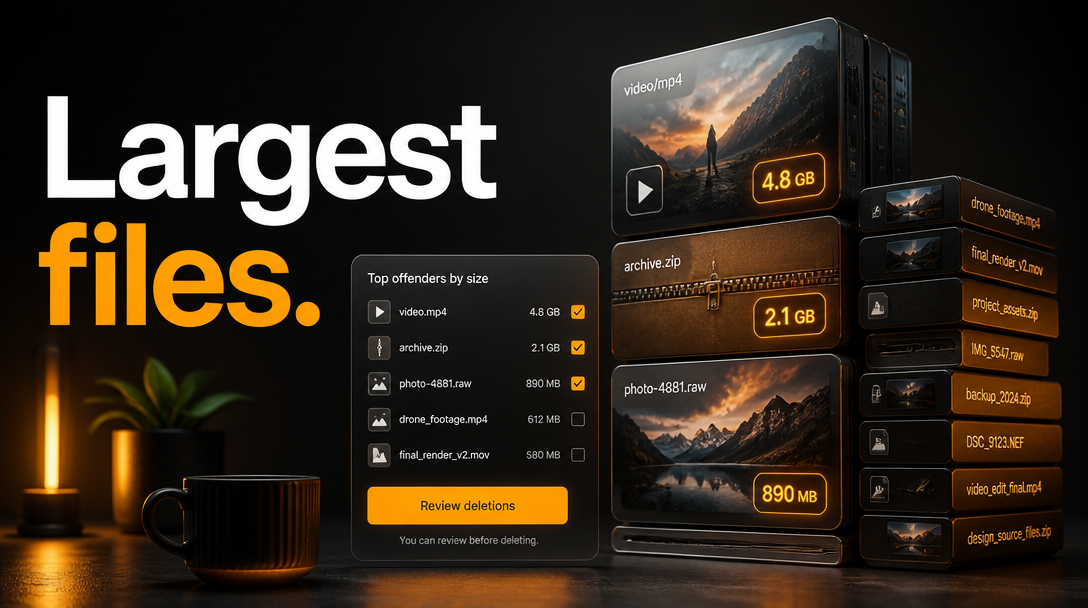
Remove space hogs under Settings → Cleanup → Largest files. Biggest objects by size. Permanent delete.
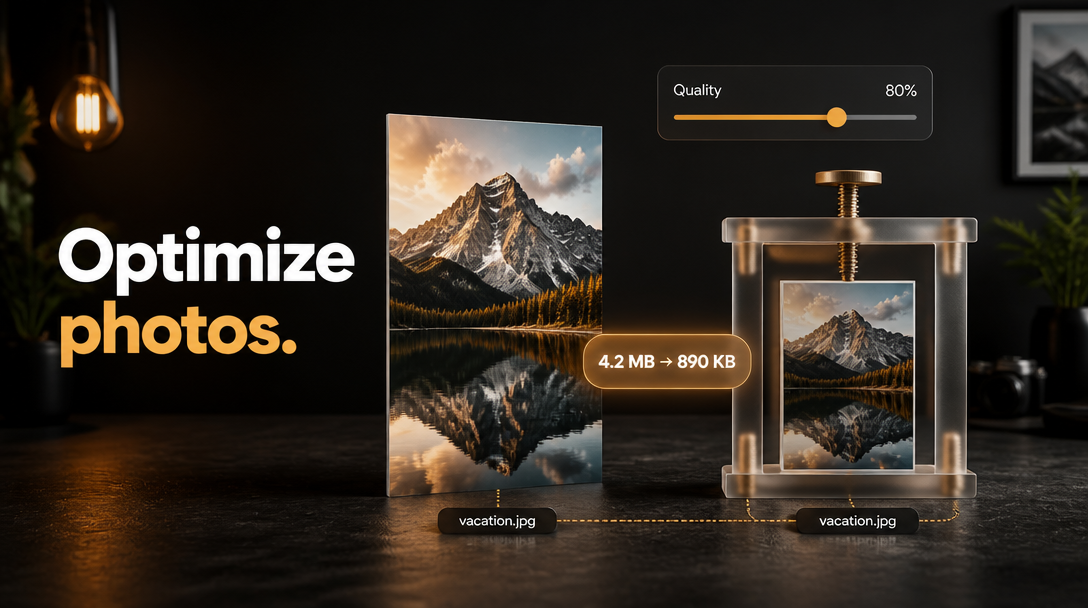
Compress and resize photos under Settings → Cleanup → Optimize photos. Re-uploads to the same key. Overwrites.
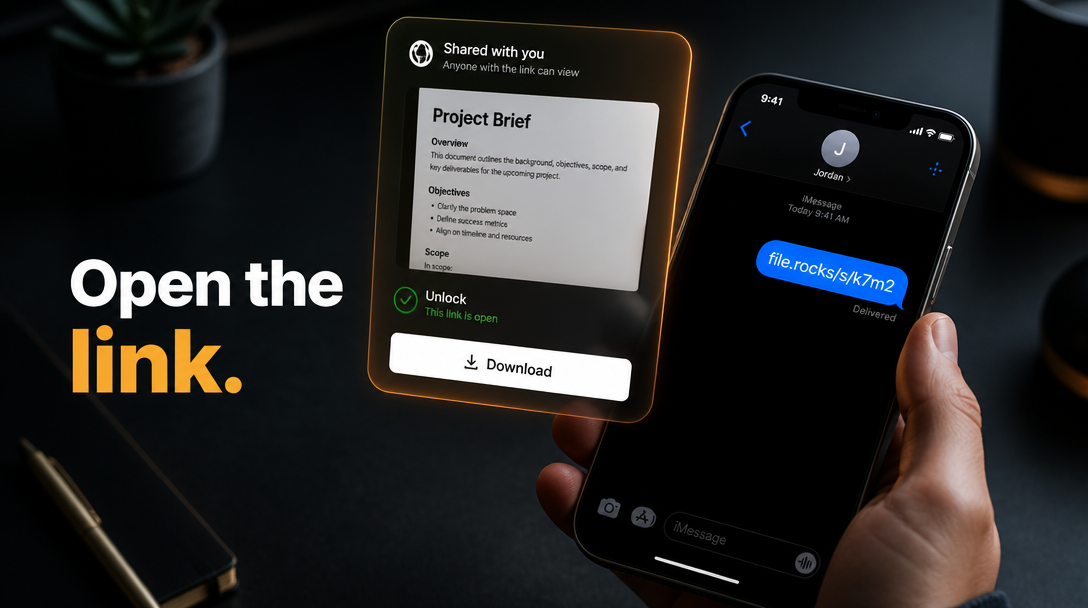
Open a public /s/... link someone sent you. Preview when the type supports it. Unlock if passworded. Download.
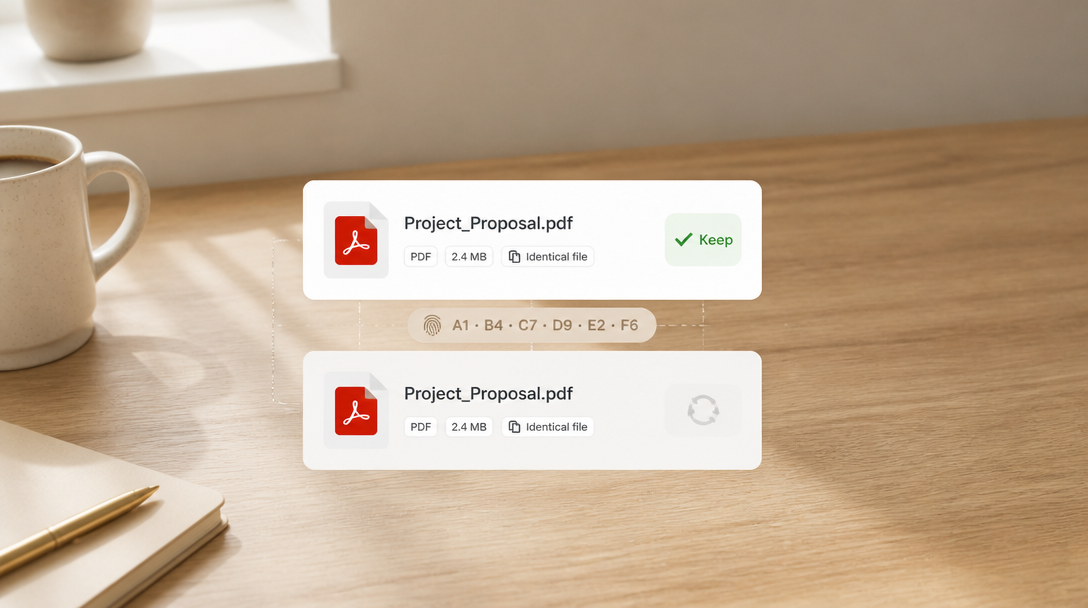
Remove exact-hash duplicates under Settings → Cleanup → Likely duplicates. Keep one copy. Permanent delete.
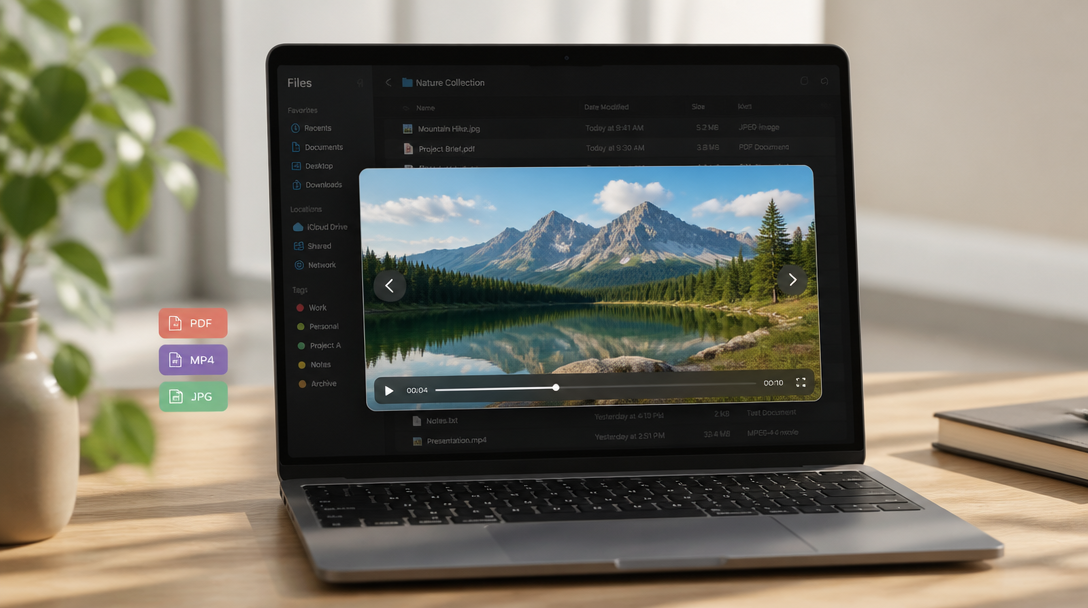
Open files in the built-in media player from Files. Click a previewable row. Next and Previous when the folder has more.

Review visually similar photos in Cleanup and keep one per group. Near-duplicate photos, not exact-hash Likely duplicates.

Drag a whole folder onto Files. Nested files land in the bucket you connected, with their relative paths.

Set when an enabled public link expires. Never, 1 day, 7 days, 30 days, or a custom date.
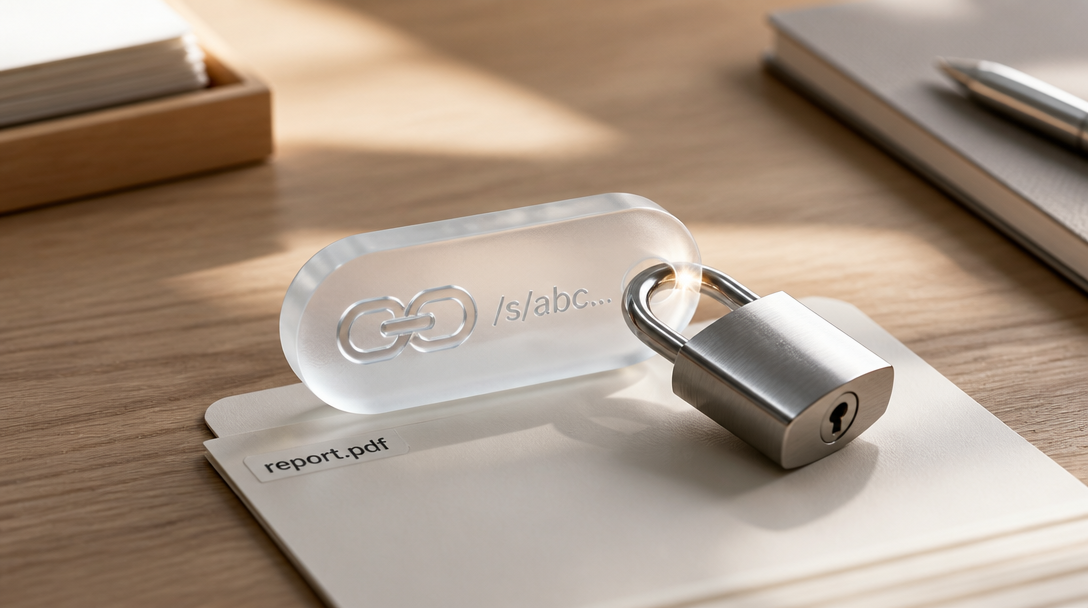
Add or clear a password on an enabled public link. Same Share modal for files and folders.
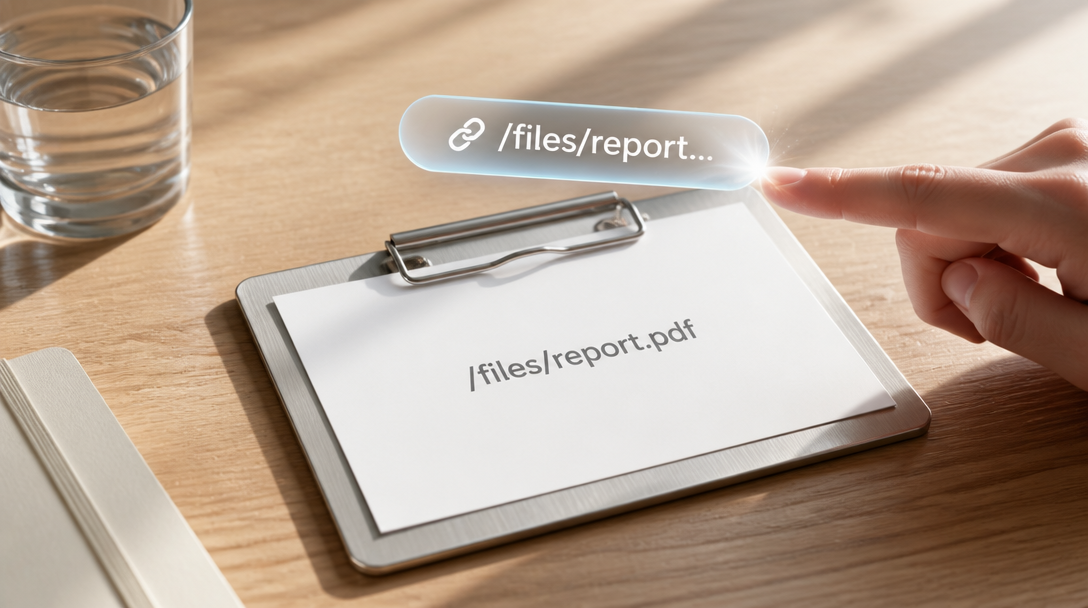
Copy an already-available file link from the row menu. Public CDN or share URL.

Turn off a public share link on a file or folder you own. Toggle Public link enabled off.

Sort files in a bucket you own by Name, Size, or Modified. Toolbar sort control.

Search files in a bucket you own. Use the Search box, then filters and Tag.

Tag files in a bucket you own so you can find them later. Row menu Tags… or toolbar Tag.

Delete several files at once from a bucket you own. Select rows, hit Delete on the toolbar.

Move several files at once in a bucket you own. Select rows, hit Move on the toolbar.
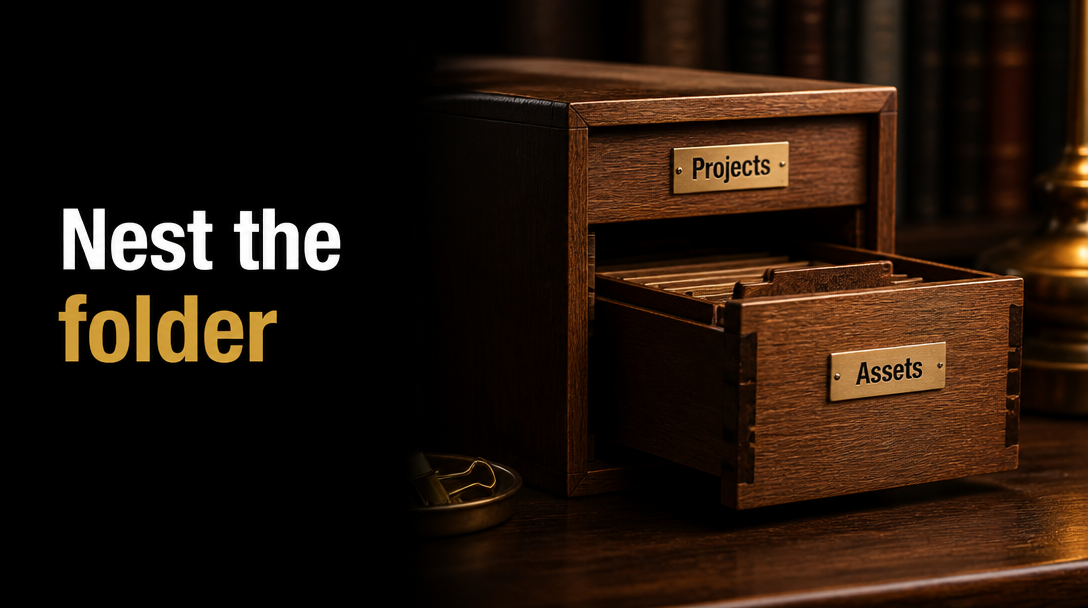
Move a folder into a different folder in a bucket you own. Open Files, choose Move to folder.

Move a file into a different folder in a bucket you own. Open Files, choose Move to folder.
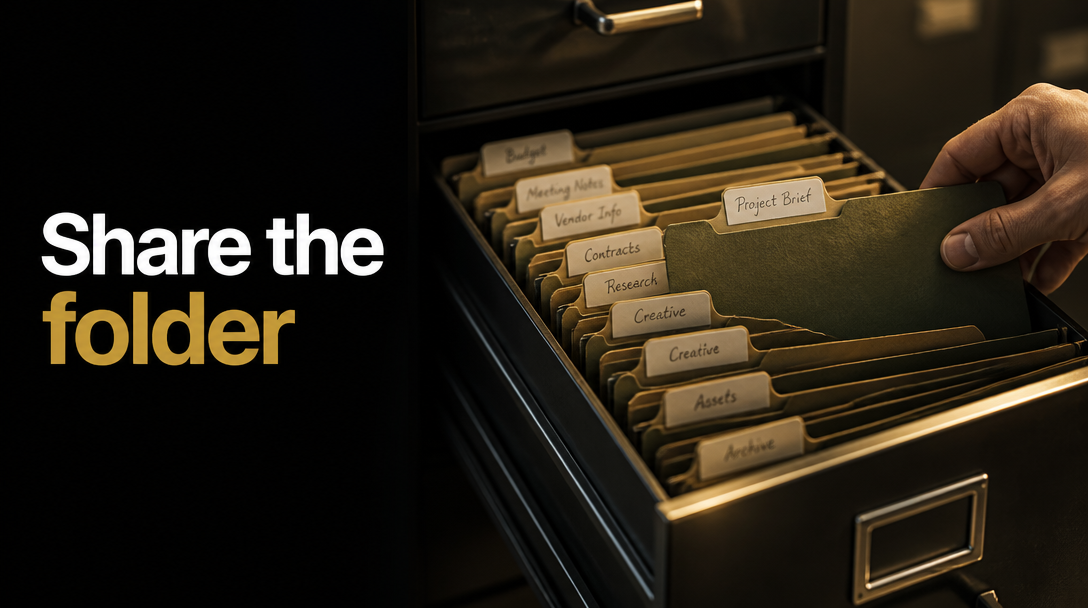
Pick a folder in file.rocks, turn on a public link, and copy it. The objects stay in your bucket.
Delete a folder from a bucket you own. Open Files, choose Delete. The folder and every file in it leave the connected bucket.

Delete a file from a bucket you own. Open Files, choose Delete. The object leaves the connected bucket.

Rename a file in a bucket you own. Open Files, choose Rename.

Make a folder in a bucket you own. Open Files, click New Folder.

Pull a file out of a bucket you own. Open Files, choose Download.

Drop local files in file.rocks. They land in the bucket you connected.

Request an iCloud Photos copy from Apple, then import the zip in file.rocks. It unpacks into your bucket.

Request an iCloud Drive copy from Apple, or zip the folder on a Mac, then import it in file.rocks. It unpacks into your bucket.

Download folders from onedrive.com, then import the zip in file.rocks. It unpacks into your bucket. No unzip on your laptop.

Download folders from dropbox.com, then import the zip in file.rocks. It unpacks into your bucket. No unzip on your laptop.

Paste a download URL or magnet in file.rocks. The file lands in your bucket. You do not park it on a laptop first.

Export Google Drive with Takeout, then import the zip in file.rocks. It unpacks into your bucket. No unzip on your laptop.

Pick a file in file.rocks, turn on a public link, and copy it. The object stays in your bucket.

Export Google Photos with Takeout, then import the zip in file.rocks. It unpacks into your bucket. No unzip on your laptop.

Create a Wasabi bucket, make an access key and secret, match the region endpoint, and paste it into file.rocks.

Create a B2 bucket, mint a bucket-scoped application key (not the master key), and paste it into file.rocks.

Create an R2 bucket, make a bucket-scoped API token, and paste it into file.rocks.
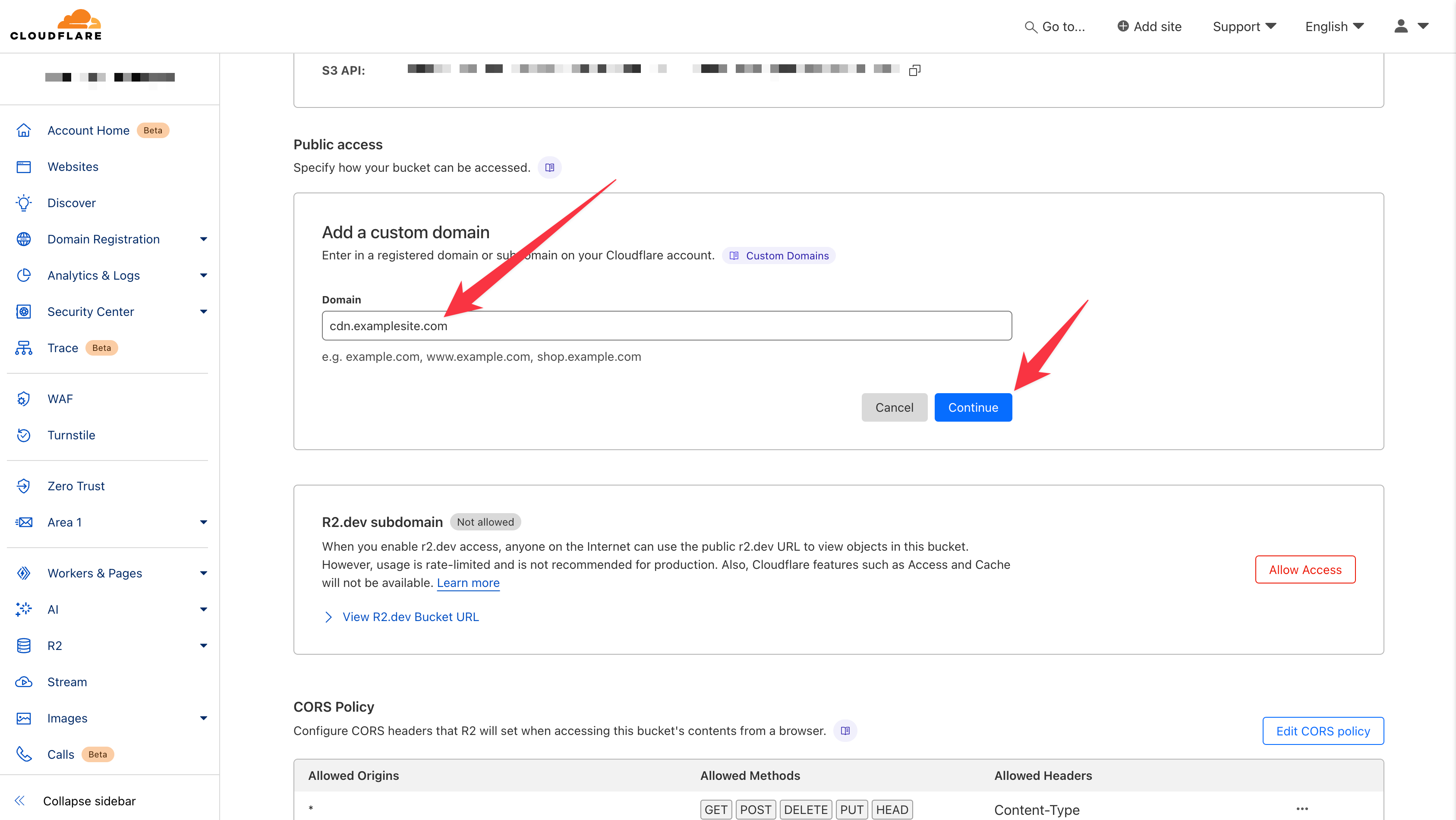
Connect a custom public domain to a Cloudflare R2 bucket in three steps.
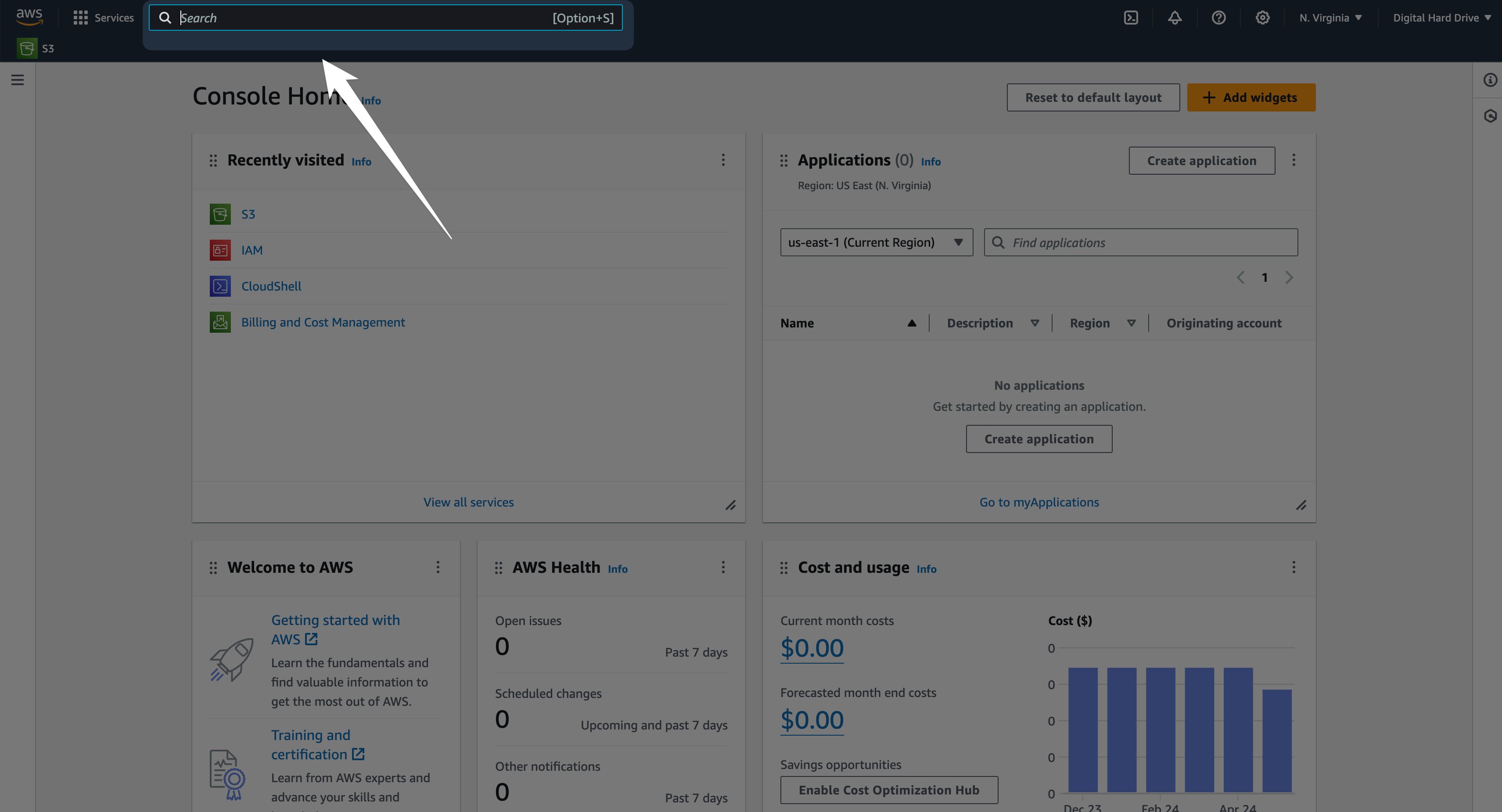
Step-by-step guide to connecting an Amazon S3 bucket to file.rocks.