How to upload files to your own bucket


You have files on a laptop. You want them in a bucket you own.
file.rocks is the UI. The objects land in the bucket you connected.
This is the drop-files-in path. If you already have a download link, that is import a file from a link or torrent. If you want a link you can send after, that is how to share a file from your own bucket.
1. No bucket yet
You need S3-compatible object storage. Not another Drive clone.
If you do not have a bucket hooked up, follow how to connect a Backblaze B2 bucket and come back. For the price table, see the cheapest cloud object storage comparison.
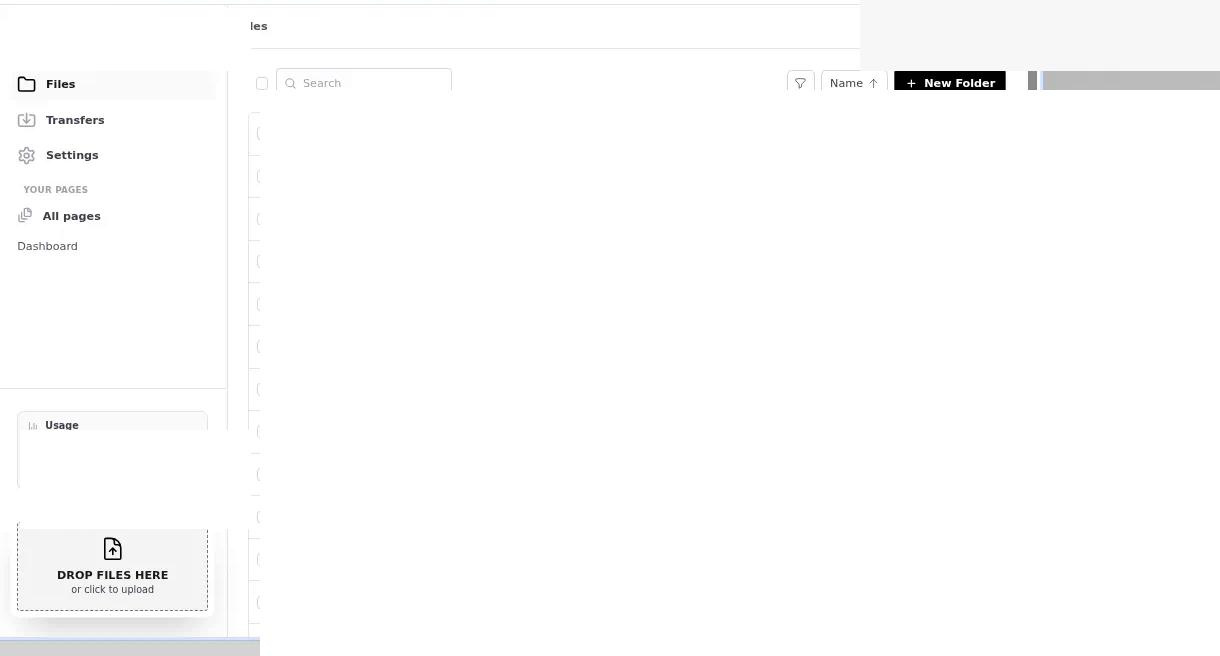
2. Open Files and drop
Sign in at file.rocks. Open Files.
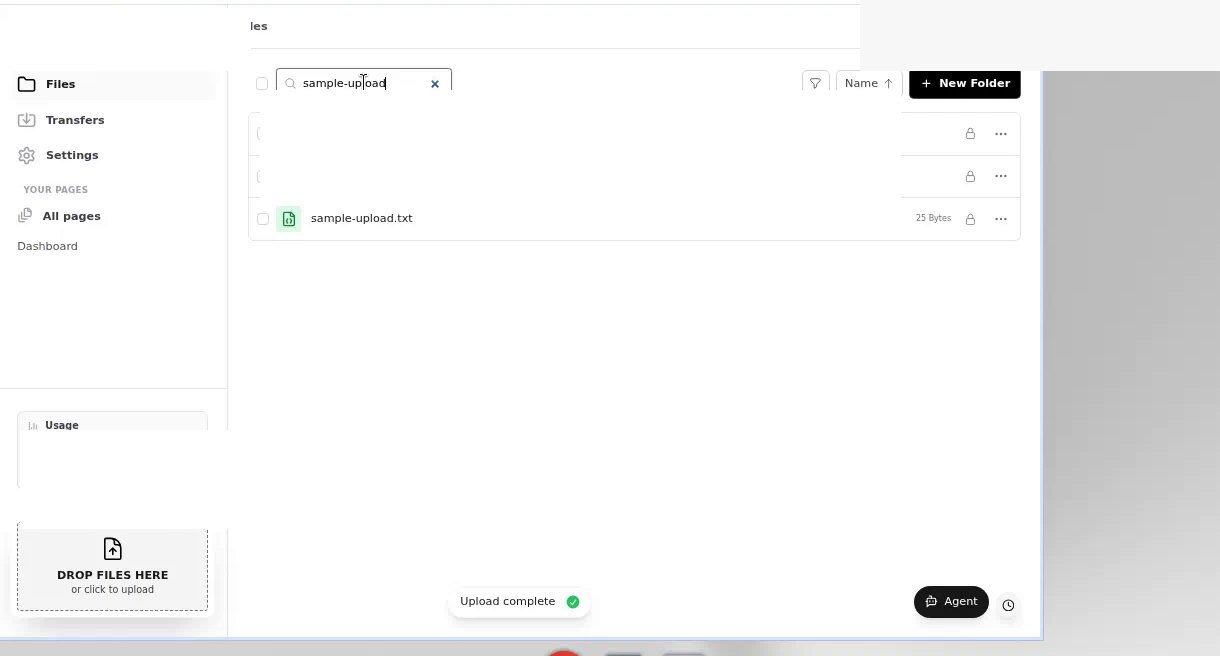
Drag onto Drop files here. Or click that box to pick files.
The objects land in the connected bucket. You are not copying into file.rocks storage.
3. Watch it land
Wait until the upload finishes. Open a file and make sure it plays or opens.
4. What this is not
This is not Import from zip. That path is for a Takeout or Other zip.
This is not From link. Do not paste a URL here and expect a remote download.
This is not a migrate. If the library is still in Google Drive or Photos, start at Move Google Drive to your own bucket or Move Google Photos to your own bucket.
The objects stay in your bucket. Your provider sets the object limits.
5. Then stop
Do not rebuild a desktop sync client on day one. Keep the bucket paid.
Need to send a file after it lands? That is how to share a file from your own bucket.
A direct download URL is a different path. Use import a file from a link or torrent.