

How to create a second workspace in file.rocks

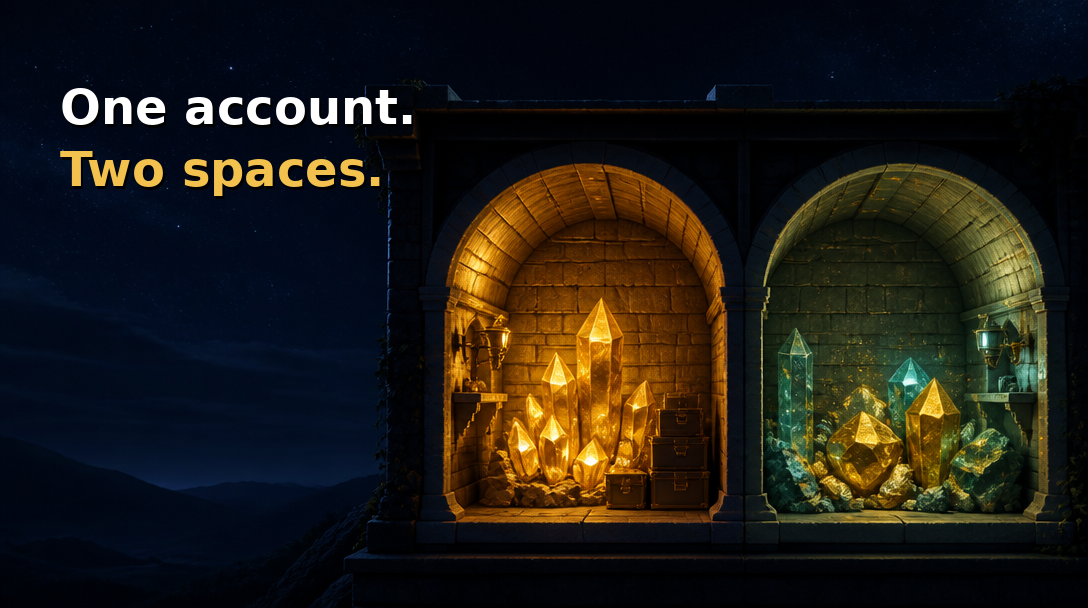
Work files and family photos don't always belong in the same place. Maybe you want a space for a client, or one for a side project.
You don't need a second account for that. One file.rocks account can have more than one workspace, and each workspace keeps its own list of buckets.
Create the workspace
Click the workspace name at the top of the sidebar to open the workspace menu. Choose Create New Workspace.
Type a name in the Workspace Name box and click Create Workspace. You'll see "Workspace created successfully!" and file.rocks takes you straight into the new workspace.
If you're on the Managed Storage plan, the workspace menu doesn't show in the sidebar. Managed Storage users can't create a second workspace from the sidebar.
Switch between workspaces
Click the workspace name at the top of the sidebar. Your workspaces show up in a list, and the one you're in is highlighted.
Pick the one you want. The page reloads, and you're in that workspace with its buckets.
Connect a bucket
A new workspace starts out empty. Buckets belong to the workspace you connect them in, so the buckets in your first workspace won't show up here.
Connect a bucket while you're in the new workspace. We'd use a separate bucket for each space so the files stay apart. Our Vultr guide walks through every step.
Invite people
To bring someone in on an older Pro plan, open the same workspace menu and choose Invite Users. The menu says "Inviting users to your workspace requires a Pro plan." You can't buy Pro on the pricing page today.
If you're on Managed Storage, go to Settings, open the Workspace card at /settings/workspace, then click Invite Member under Workspace Members.
Without one of those plans, you'll see an upgrade window instead. Our invite guide covers roles and what each person can do.
Your files stay in the bucket you connected, and file.rocks is how you manage them.