

Move iCloud Photos to your own bucket


iCloud Photos is a nice viewer. It is a worse vault. If you want the pictures to outlast an Apple subscription, they need to live in a bucket you own.
The why is already written: storing photos and videos forever. This post is the move for the iCloud Photos library. Not iCloud Drive. Not Google Photos. Those belong in Move iCloud Drive to your own bucket and Move Google Photos to your own bucket.
1. Get a zip of iCloud Photos
The official path is Apple's copy request. Sign in at privacy.apple.com. Choose Request a copy of your data. Check iCloud Photos.
Do not select everything. Do not check iCloud Drive.
Pick a max file size. Apple splits the archive into 1 to 25 GB chunks. Then you wait.
Apple says it can take up to 7 days. When the files are ready, you have 14 days to download them. Source is Apple data and privacy help. The wait is real.
A big library comes as many zips. Download each one.
Do not unpack this onto a laptop and call it done. The zips are the handoff. The bucket is the home.
2. Pick a bucket you own
You need S3-compatible object storage. Not another Photos clone.
For the price table, see the cheapest cloud object storage comparison.
This post does not walk the console again. If you do not have a bucket hooked up yet, follow how to connect a Backblaze B2 bucket and come back.
3. Import the zip in file.rocks
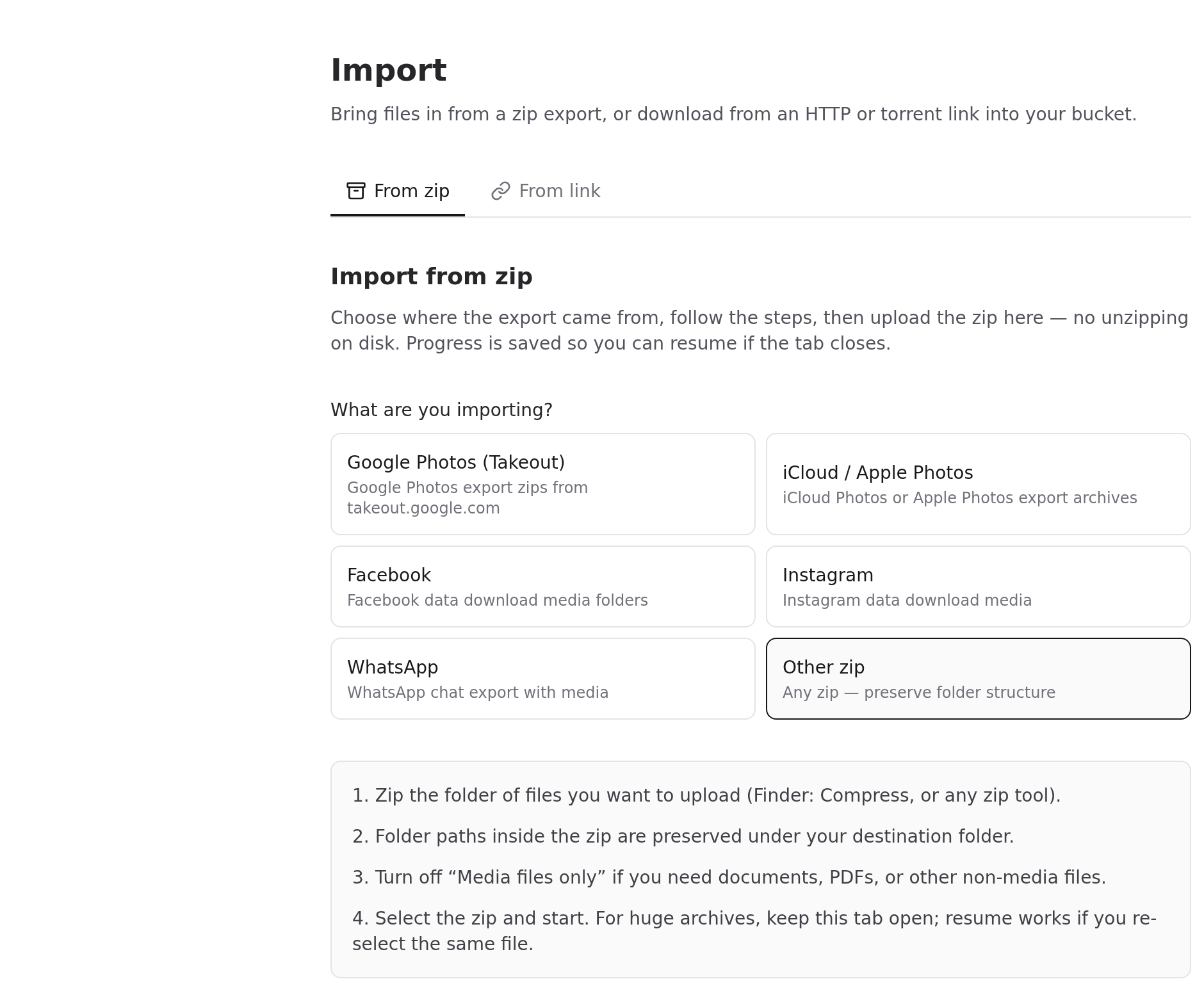
Sign in at file.rocks. Open Settings, then Import. Stay on From zip.
Pick Other zip. That is the generic zip path. The Google Photos (Takeout) tile is for Google's export, not Apple's.
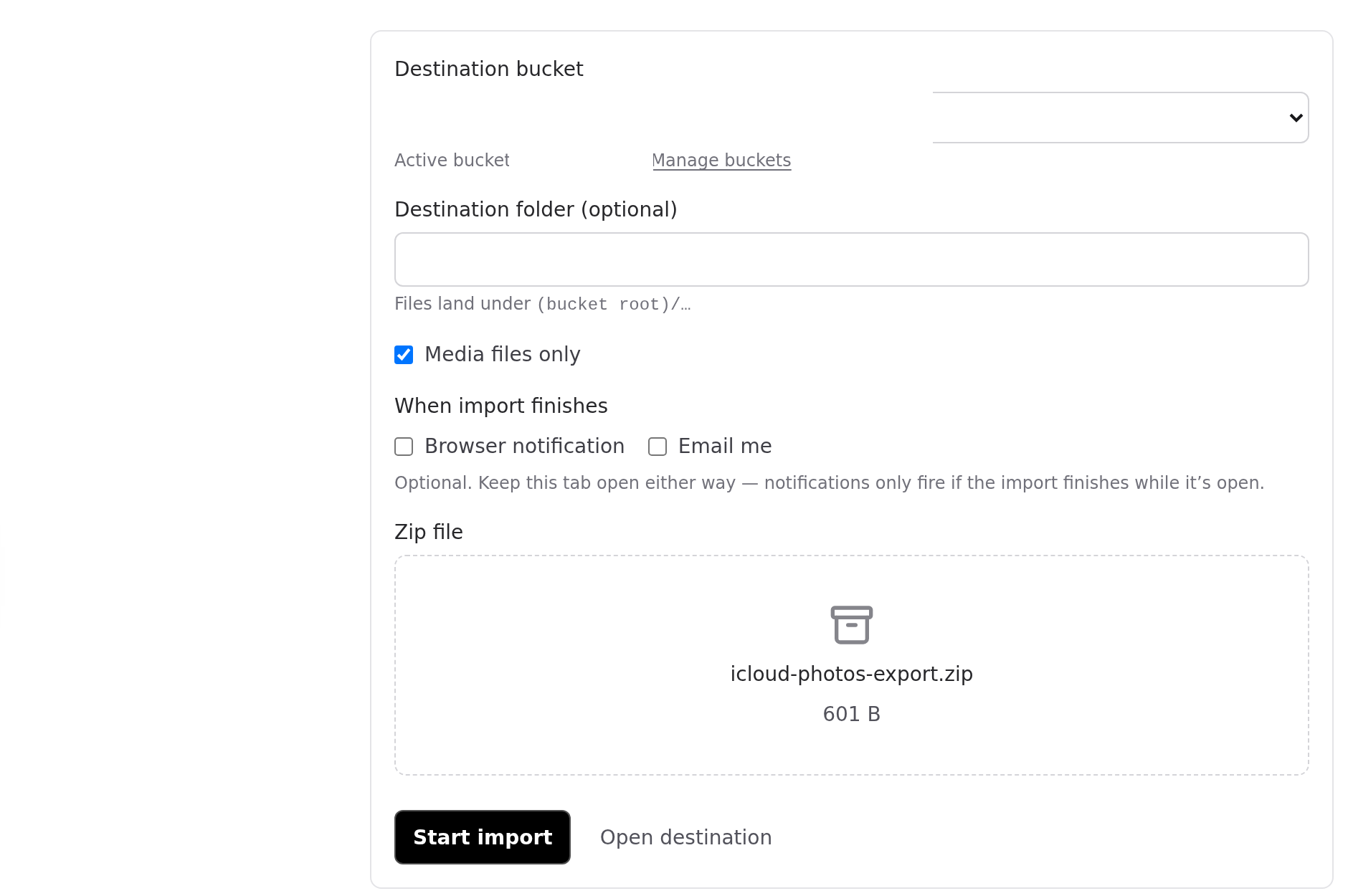
Media files only can stay on. This zip is photos and videos. Leave the box on.
Drop the zip. Click Start import. file.rocks unpacks it into your bucket. You do not unzip it on your laptop.
If Apple split the export into more than one zip, import one part at a time.
Wait until it finishes. Open a few pictures and make sure they play.
You are not copying into file.rocks storage. file.rocks is the UI. The objects land in your bucket.
If you already unpacked the zip, drop the folders in Files instead. That is the fallback, not the main path.
4. What you lose
Be honest about this before you delete anything in iCloud.
You lose albums and Memories as albums. Apple puts CSV lists in the zip. The pictures come through. The album itself does not.
You lose Shared Albums. People you shared with in Photos will not keep a magic link into your new bucket. Send them files if they still need them.
You lose Recently Deleted. That trash is not in the copy.
You lose Live Photo pairing. You get the still and the motion file. They are not glued together the way they were on the phone.
You lose edits. The zip is the originals.
You lose Optimized iPhone storage. New shots on the phone will not keep stuffing themselves into this bucket. New photos need a new habit: request another copy later, or import another zip through file.rocks.
You lose Family Sharing. People on the family plan will not keep a magic link into your new bucket.
The wait is real. Plan for it.
You keep the photos. You own the bucket. You can leave file.rocks, or B2, and the objects still sit there.
5. Then stop
Do not rebuild iCloud Photos. Do not hunt for a face-search plugin on day one.
Open the library in file.rocks when you want a picture. Keep the bucket paid. That is the whole point of storing photos and videos forever.
Drive files are a different export. Use Move iCloud Drive to your own bucket. Google Photos is Move Google Photos to your own bucket. Drive, Dropbox, and OneDrive are Move Google Drive to your own bucket, Move Dropbox to your own bucket, and Move OneDrive to your own bucket.
Need to send a file after it lands? That is how to share a file from your own bucket.
A direct download URL is a different path. Use import a file from a link or torrent. That is not the iCloud Photos path.