

How to share a file from your own bucket


You already own the file. You want a link you can send.
file.rocks is the UI. The object stays in your bucket.
1. No bucket yet
If you do not have a bucket hooked up, follow how to connect a Backblaze B2 bucket and come back.
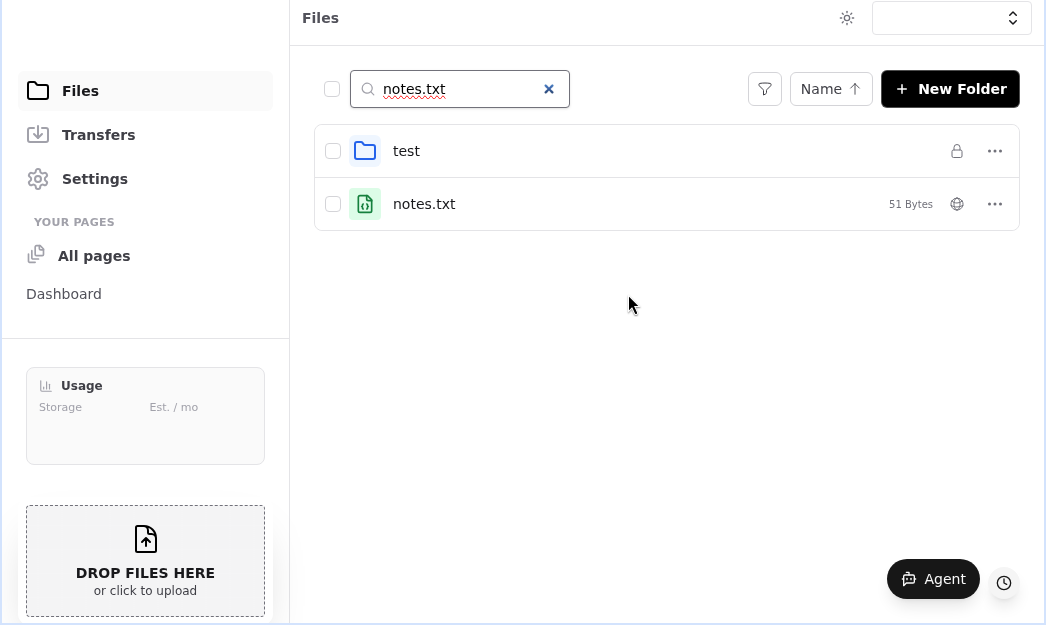
2. Pick a file in Files
Sign in at file.rocks. Open Files.
Click the file you want to send. One file. Not a whole folder.
3. Share File
Open the file menu. Click Share file.
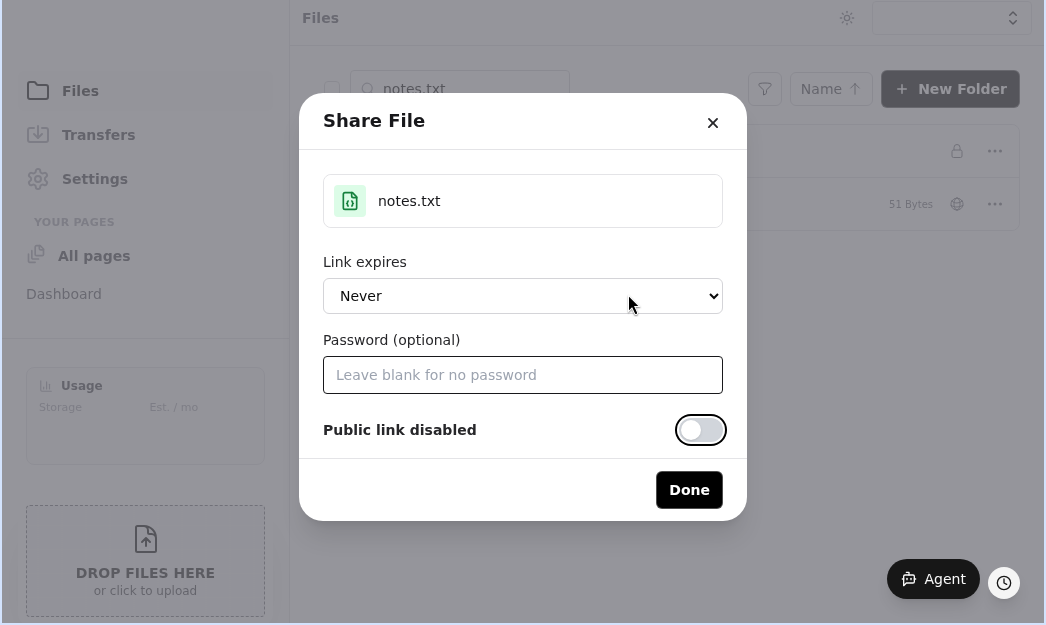
You get a Share File dialog. Link expires defaults to Never. Password is optional.
Leave the toggle off if you are not ready. That is Public link disabled. The setting is for this file, not the whole bucket.
4. Copy the link
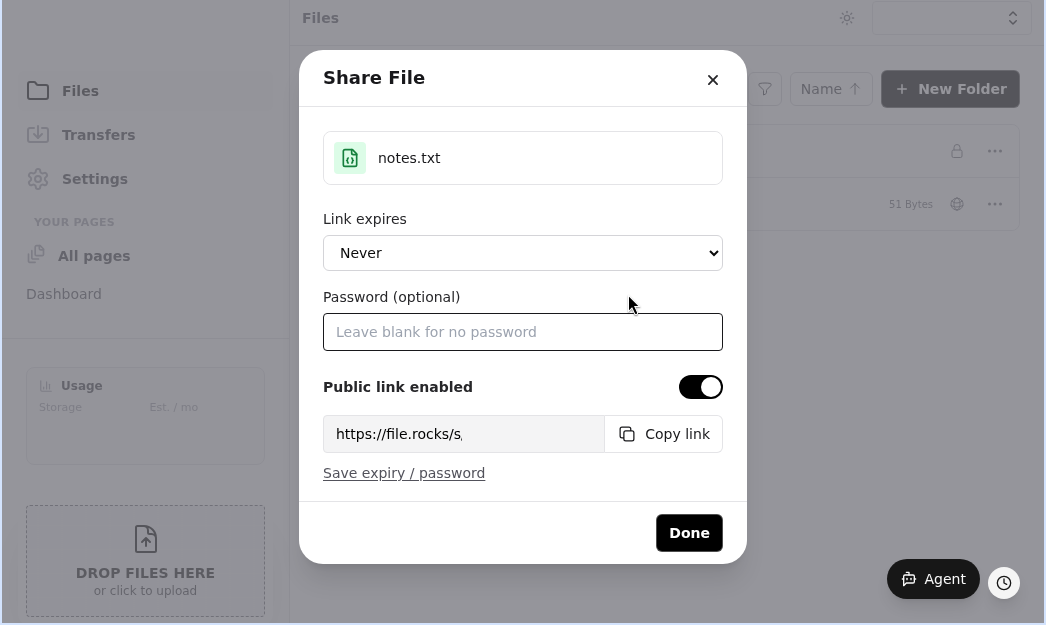
Turn on Create public link. It flips to Public link enabled.
Click Copy link. Send that.
Text it. Email it. Paste it wherever you talk. The file does not move.
5. What the other person sees
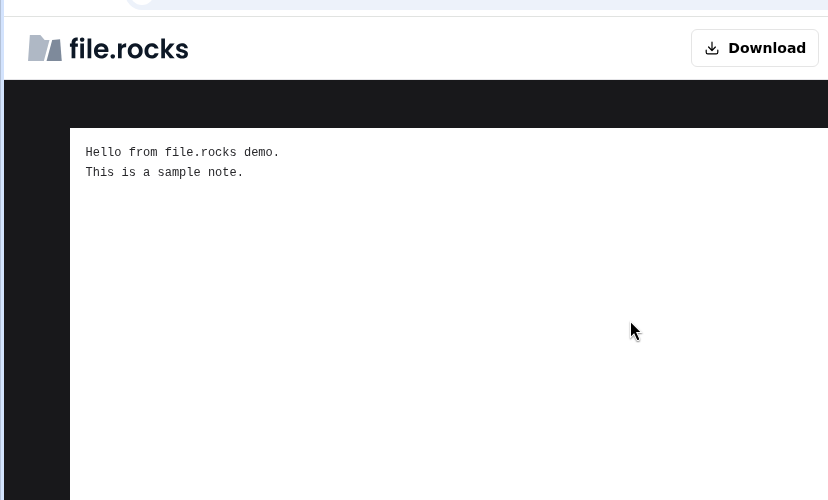
They open the file in a browser. There is a Download button. That is all they get.
They do not see your bucket. They do not see other folders. They do not get a login.
You still own the file. The bucket still holds it. file.rocks just made the link.