

How to use the Media Library in your own bucket

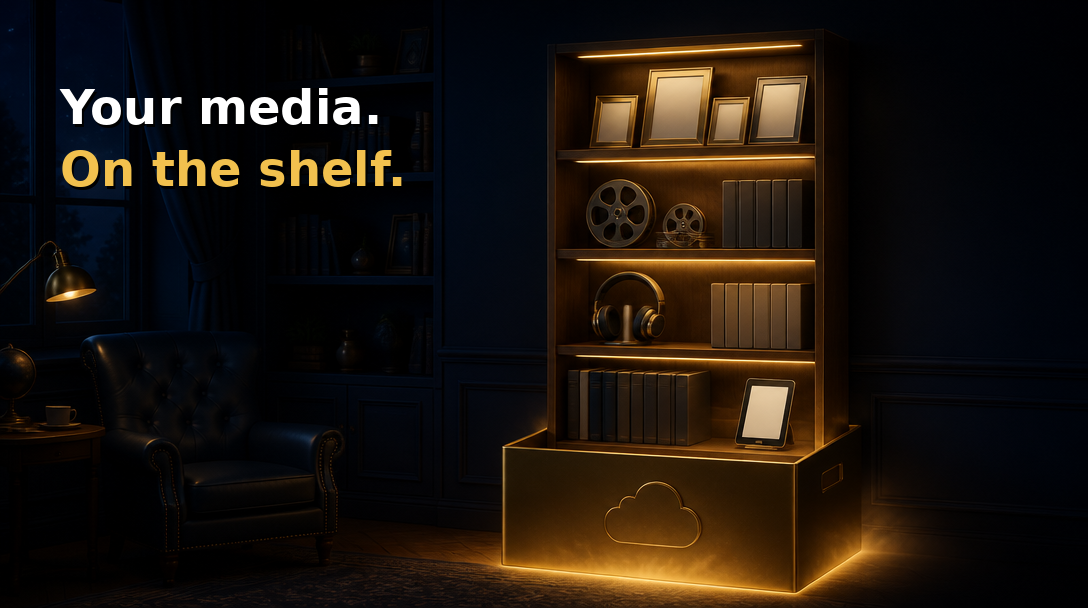
Your bucket probably holds more than work files. Photos, home videos, audiobooks and ebooks tend to pile up next to everything else. The Media Library in file.rocks sorts them onto shelves so you can browse and play them in one place.
If you want the long view on keeping family media around, read storing photos and videos forever.
Turn on the Media Library
Go to Settings, then Preferences, and find the "Media Library" setting. It reads: "Show Library in the sidebar for browsing photos, movies, audiobooks, and ebooks. Off by default." Flip the toggle and you'll see "Media Library enabled".
This setting is saved in the browser you're using. If you work on a second computer or browser, we'd turn it on there too.
Open the Library
Once it's on, "Library" shows up in the sidebar. Click it to open the Library page, which says "Browse photos, movies, audiobooks, and ebooks in" your bucket name, followed by "Opens in the same media player as Files."
The Library reads the bucket you have active right now. If no bucket is picked, you'll see "Pick a bucket first" and "Library reads media from your active bucket." with a "Choose bucket" button. To browse a different bucket, switch to it first.
Browse each shelf
The tabs across the top are "Home", "Photos", "Movies", "Audiobooks" and "Ebooks". Home shows a "Featured photo" with an "Open in media player" button, plus a shelf for each type with a "See all" link.
- Photos: "Stills from every bucket folder". Any image file.
- Movies: "Video you own, ready to play". Any video file.
- Audiobooks: "Long listens and albums". Any audio file.
- Ebooks: "EPUB and PDF on your shelf". EPUB, PDF, MOBI and AZW3 files.
If a shelf is empty you'll see a line like "No photos found in this bucket." with an "Import a zip" link. The "Import media" button at the top of the page goes to the same place.
Photos still in Google Photos? Start at Move Google Photos to your own bucket. To add a whole folder from your computer, see how to upload a folder to your own bucket. If the file is at a download link or a torrent, you can import a file from a link or torrent.
What opens and what only shows up on the shelf
Photos, movies and audiobooks open in the same media player you use in Files. EPUB and PDF files open in the reader. MOBI and AZW3 files show up on the Ebooks shelf so you can find them, but they don't open in the reader.
For more on the player itself, see how to preview a file in your own bucket.
Your files stay in the bucket you connected, and file.rocks is how you manage them.