

How to clean up empty folders in your own bucket

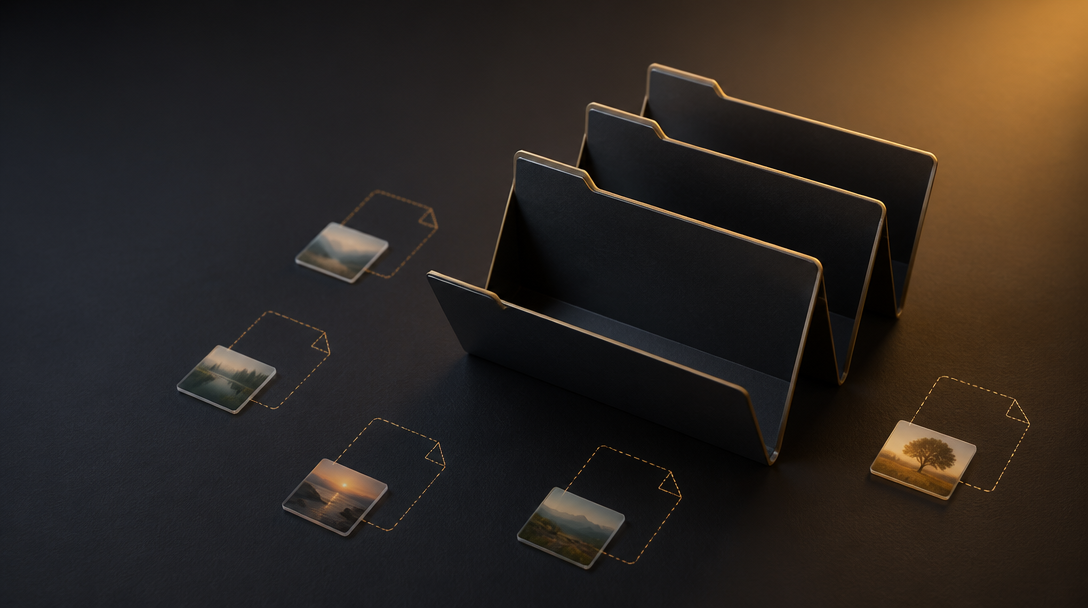
Your bucket works fine. The list is just noisier than it needs to be.
Empty folders pile up after moves and deletes. Old previews hang around after their originals are gone. None of it costs you much, but all of it shows up when you browse.
This is Orphans under Settings → Cleanup. It finds every empty folder and stray thumbnail at once. Empty folders free up 0 bytes, so think of this as tidying up, not saving space.
It is not how to delete a folder from your own bucket. That post covers one folder you pick by hand. This one finds all the empty ones for you.
1. No bucket yet
You need S3-compatible object storage. Not another Drive clone.
If you do not have a bucket hooked up, follow how to connect a Backblaze B2 bucket and come back. For the price table, see the cheapest cloud object storage comparison.
2. Open Orphans
Sign in at file.rocks. Open Settings → Cleanup. Pick the bucket if needed.
Open Orphans (/settings/cleanup/orphans). The label reads Empty folders and stray thumbnails.
The guide line is honest about it: housekeeping only. Empty folders and thumbs with no source file.
If there is nothing to clean, you get Nothing in this category. That's a good sign.
3. Read the reason on each row
Every row tells you why it's there. There are only two reasons.
Empty folder means a folder marker with nothing under it. It usually shows up after you move or delete everything that was inside.
Thumbnail without source file means a preview in _thumbnails/ whose original file is gone. The picture it was made for doesn't exist anymore, so the preview is just leftover.
If a row surprises you, leave it. You can deselect anything you want to keep.
4. Select, then confirm
The wizard is 1 · Select and 2 · Confirm. It's the same flow as Tiny files and Largest files.
Select the rows you want gone with Select all or pick them one by one. Deselect anything you want to keep. Dismiss selected hides rows you never want to see suggested again.
Click Review deletions. The confirm step is your final check. Click Delete N permanently to finish.
This is a permanent delete. There is no trash and no undo here. Since empty folders hold 0 bytes, don't expect your storage number to move much. The win is a cleaner list.
5. What this is not
This is not deleting one folder you picked. That is how to delete a folder from your own bucket.
This is not small leftover files by size. That is how to clean up tiny files in your own bucket.
This is not size ranking for space hogs. That is how to clean up largest files in your own bucket.
This is not screenshot and Downloads clutter. That is how to clean up screenshots and downloads in your own bucket.
This is not exact-hash duplicates. That is how to clean up likely duplicates in your own bucket.
6. Then stop
Want space back instead of a tidier list? Start with how to clean up largest files in your own bucket.
Want the small junk gone too? That is how to clean up tiny files in your own bucket.
Want exact twins gone? That is how to clean up likely duplicates in your own bucket.